Blocks: tempo and length
Use this page to add, change, move and delete the blocks of your ladder.
To add a block
- Tap the add button (+) at the end of the ladder.
- Gradus adds a new block after the last block. The new block is 120 BPM and 1:00 long.
The free version has a maximum of 4 blocks. With the unlock, a ladder can have a maximum of 10 blocks. If your ladder has 4 blocks and you do not have the unlock, the add button opens the unlock page.
To set the tempo of a block
- Tap the block to select it.
- Set the tempo with one of these methods:
- Turn the dial.
- Swipe up or down on the tempo number. Swipe up to go faster.
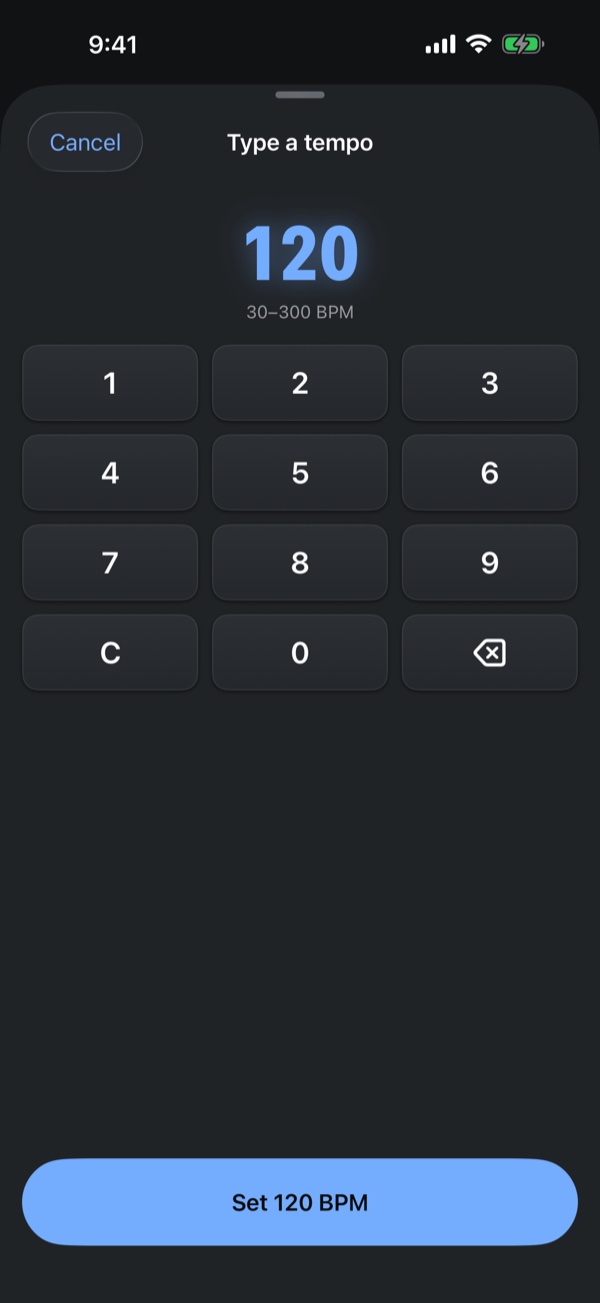
- Touch and hold the tempo number. Then type the tempo on the keypad.
- Tap the Tap key on each beat of the music. After two taps, Gradus shows the tempo. Gradus sets the tempo 2 seconds after your last tap.
You can change the tempo while the ladder plays.
The tempo range is 30 to 300 BPM. If you type a tempo out of this range, Gradus uses the nearest limit and tells you.
If Stepping is on, a tempo change to one block changes all the blocks. For more information, see Stepping.
To set the length of a block
Each block has a length in time or in beats.
- Double-tap the block. The block editor opens. Its title shows the number of the block, for example Block 2 of 4.
- Under Length, select Time or Beats.
- Set the length:
- Time: from 0:01 to 20:00, in minutes and seconds.
- Beats: from 1 to 6000.
You can change the length while the ladder plays.
A block with a time length always ends at the end of a bar. Thus, it can play a little longer than the time that you set. For example, a block of 1:00 can play for 1:02. The block editor shows the time that the block plays.
A block with a length in beats plays exactly that number of beats. Its last bar can be shorter than the other bars.
To move a block
You cannot move a block while the ladder plays.
- Pause or stop the ladder. If the ladder is paused, Gradus stops it when you move a block.
- Touch and hold the block.
- Drag the block sideways to its new position.
To delete a block
- Touch and hold the block.
- Drag the block up. The block turns red.
- Release the block.
- Tap Delete.
You can also delete a block in the block editor: tap Delete Block.
You cannot delete the last block of the ladder.
Free or paid: ladders of up to 4 blocks are free. Ladders of 5 to 10 blocks need the unlock. Block lengths in time or beats are free.
Related: Stepping · Unlock and Restore Purchases