See the beat
Use the visual beat when you cannot look closely at your iPhone, for example from across the room.
To show the beat on the full screen
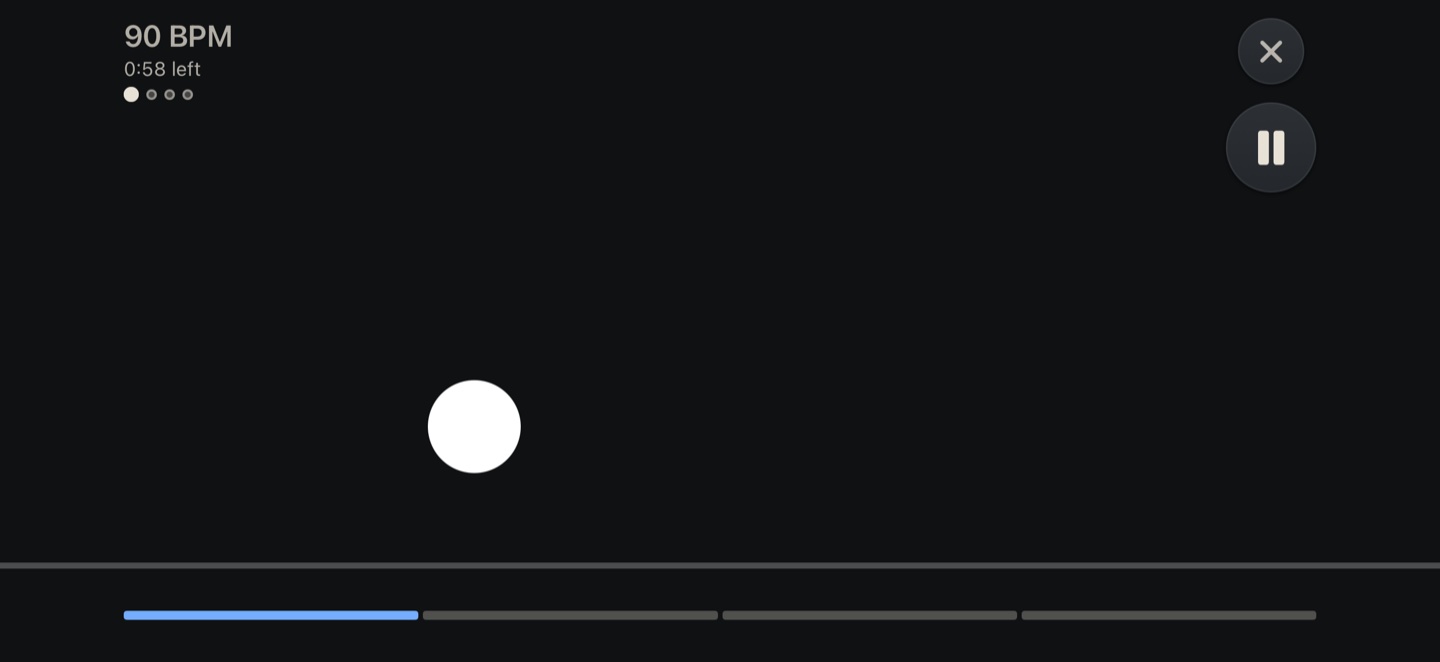
- Tap Play.
- Turn your iPhone to landscape.
- To close the visual beat, tap the close button (×), or turn your iPhone back to portrait.
If the rotation lock of your iPhone is on, the visual beat does not open.
To pause, tap the visual beat.
The screen stays on while the visual beat shows and Gradus plays.
To show the beat automatically
Gradus can show the visual beat when you do not touch the screen for a period.
- Open Settings.
- In Visualizer, set Show the visualizer to Fade in after a pause.
- Set After to a period from 5 to 120 seconds.
With this setting, the visual beat does not open when you turn your iPhone to landscape. To close it, tap the close button (×).
Visual styles
| Style | Free or paid |
|---|---|
| Bouncing ball | Free. This is the default style. |
| Pulsing light | Free |
| Pendulum | Needs the unlock |
To select a style:
- Open Settings.
- In Visualizer, tap Model and select a style.
For the bouncing ball, you can also set the path of the ball: in Visualizer, tap Bouncing ball.
You can also set the brightness of the pulsing light in Visualizer.
If Reduce Motion is on in iOS, Gradus always shows the pulsing light.
If the picture and the sound do not align
Gradus corrects the visual beat for the delay of your headphones or speaker. If the picture is still early or late, adjust the visual offset:
- Open Settings.
- In Timing, set Visual offset. The range is −200 ms to +200 ms.
If the picture is early, add time. If the picture is late, subtract time.
Tempo number
On the main screen, the tempo number can pulse on each beat. To turn the pulse on or off:
- Open Settings.
- In Appearance, turn Pulse the tempo number on or off.
Appearance and accent color
- Open Settings.
- In Appearance, select System, Light or Dark.
- Tap Accent color and select a color.
Gradus has six accent colors: Amber, Red, Green, Teal, Blue and Violet. Blue is the default accent color.
Free or paid: the bouncing ball, the pulsing light, the tempo number, the visual offset, Light, Dark, System and the blue accent are free. The pendulum and the other five accent colors need the unlock.
Related: Get started · Unlock and Restore Purchases